Skip to content

Boat fleet management software

Keep the day moving.

One late return can put the whole dock behind.

Boat positions, bookings and maintenance in one shared workspace. See what needs attention before the next departure.

Explore the dashboard

Explore the actual software with a simulated fleet. No account needed.

See a real workflow
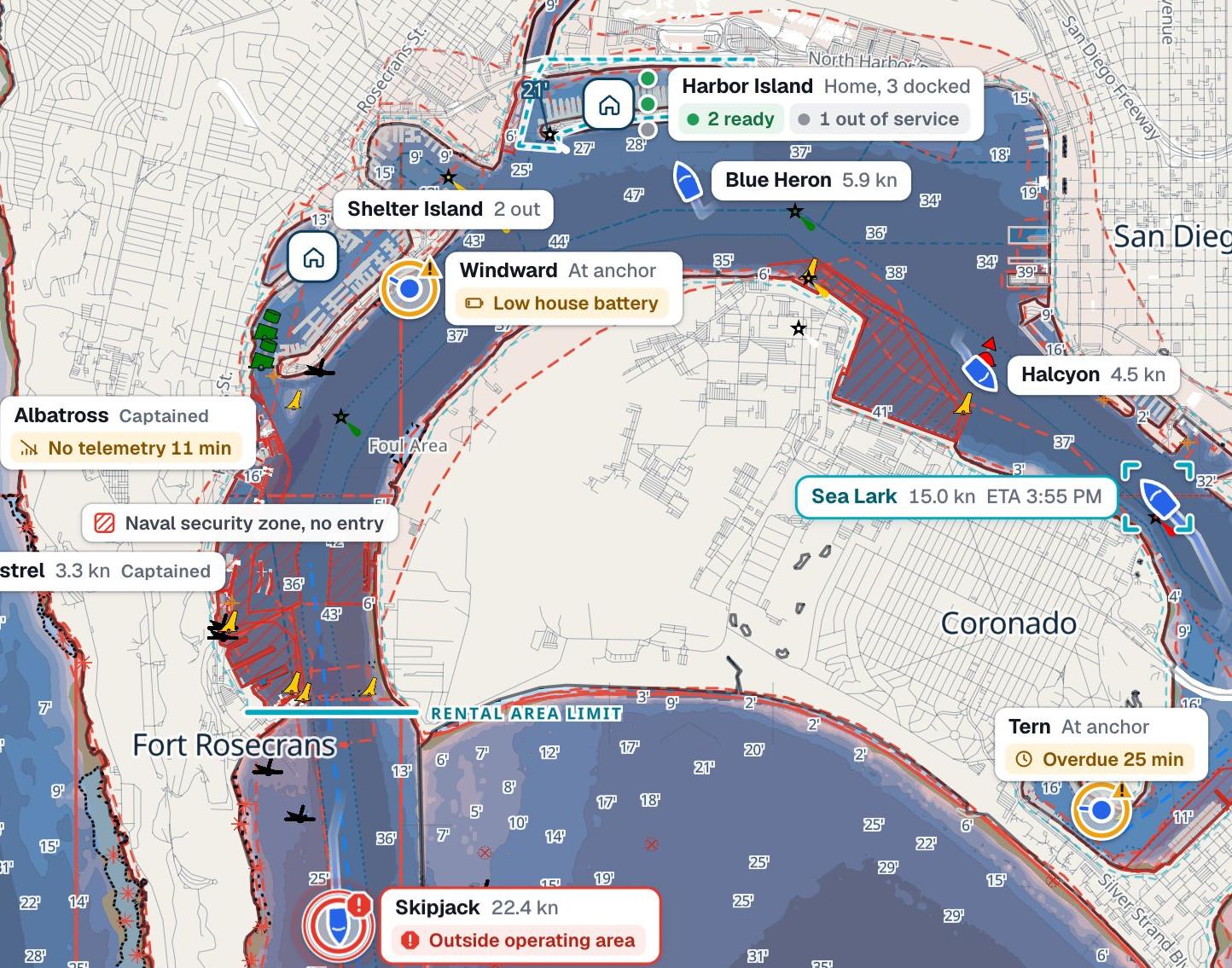
Actual PATHR Fleet chart on San Diego Bay: Tern is overdue, Sea Lark is returning and the Harbor Island base shows boats ready and out of service.
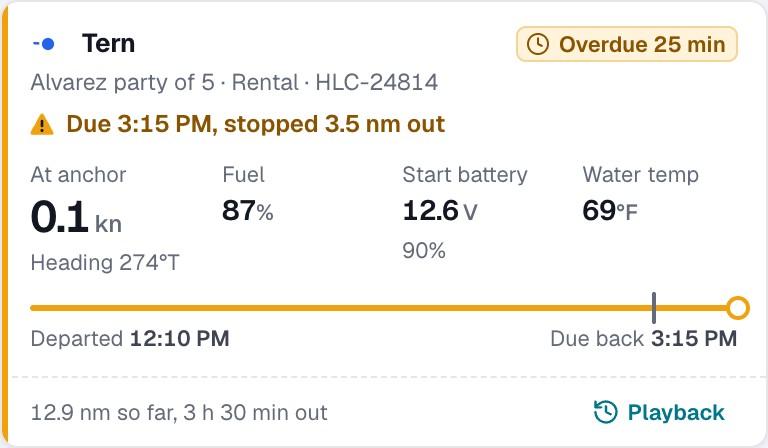
Actual dashboard: fictional Tern is overdue by 25 minutes, due back at 3:15 PM and stopped 3.5 nautical miles out.
Actual dashboard · Simulated fleet

An overdue return, step by step

A late return.
A clear next step.

Knowing a boat is late is the beginning. Your team needs the booking, the latest report and a record of what happens next. Here’s how that looks inside PATHR.

3:40 PM · Tern was due at 3:15

See the booking and the boat together.

Tern was due at 3:15 PM. At 3:40, it is still reporting outside the return zone. The trip brings its due time, latest reading and recorded track into the same view.

Start with what is known before deciding what to do.

Open this trip in the dashboard

Illustrative workflow · Fictional renter and staff report · No account needed

Inside PATHR FleetTrips & bookings
Actual PATHR trip screen: fictional Tern is overdue by 25 minutes, with the 3:15 PM due time, latest report and recorded track.
Actual dashboard · Simulated fleet and conversation

The silent recording begins with Tern overdue by 25 minutes. The operator opens the renter contact, enters a report that the renter is preparing to return and names Priya to review the next position report at 3:50 PM. Log call saves the entry with its time and author. The overdue alert remains open.

The rest of the day belongs here, too

The boat. The trip.
The work around them.

Bring what happens on the water together with the work back at the dock. The same boat connects the booking, its readings, its maintenance and its trip record.

Maintenance & readiness

See the open repair before you assign the boat.

Keep defects, service intervals and repair history with the vessel. A boat on a maintenance hold stays visibly unavailable while your team works through the issue.

Explore maintenanceBoat maintenance software details
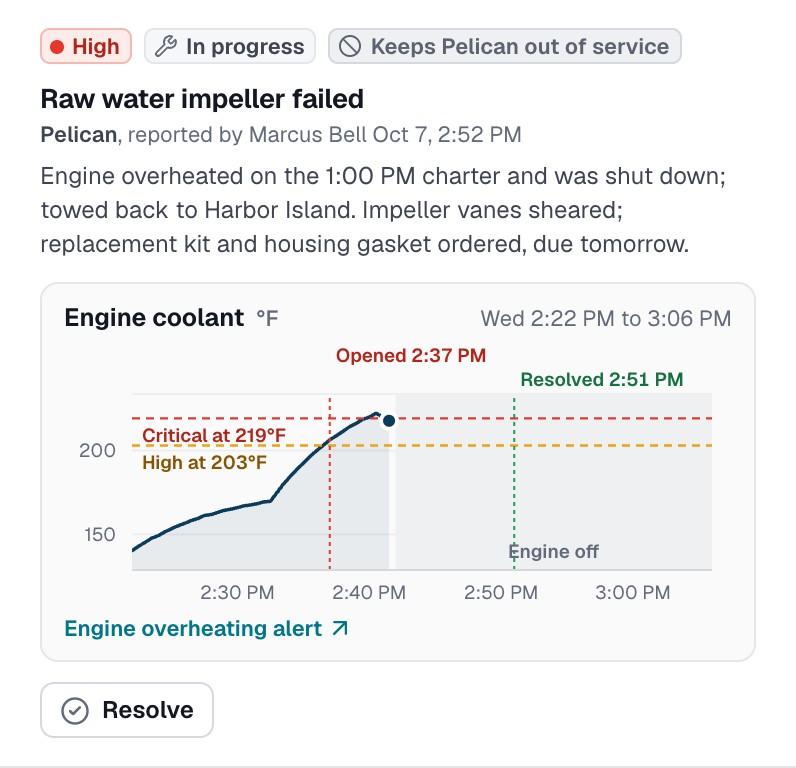
Actual dashboard: fictional Pelican has an in-progress raw-water impeller repair that keeps it out of service.
Actual dashboard · Simulated maintenance record

Trip records & review

Pick up the trip with the evidence in view.

Review the recorded track, speed, readings and alerts together. Give an incident review or the next shift a shared record of what the system observed.

Explore trip history
Actual PATHR trip history for fictional Skipjack, with its recorded route and operating-area alert on San Diego Bay.
Actual dashboard · Simulated trip

AI-assisted inspections · Pilot preview

Know how your
boats come back.

A return-day scrape shouldn’t become a search through camera rolls. Give renters and staff a guided way to document condition before and after a rental, with the evidence kept beside the boat.

Try the AI Vision walkthrough: choose before and after video or photos, then watch PATHR match the views and surface possible changes for staff review. Confirmed findings stay connected to maintenance and the boat’s condition history.

  • Before and after video walkarounds or photo sets
  • Matched views and possible changes, ready for staff review
  • One vessel history, linked to the right rental
  • Confirmed findings connected to maintenance
Explore inspection demo

Interactive AI Vision demonstration with saved synthetic media and pre-analyzed results. Personal uploads and live AI processing are planned for pilot development. Your team confirms damage; the system does not assign renter fault.

PATHR Fleet / InspectionsSample inspection

Sea Lark / Completed afternoon rental

Post-rental review

2 possible changes
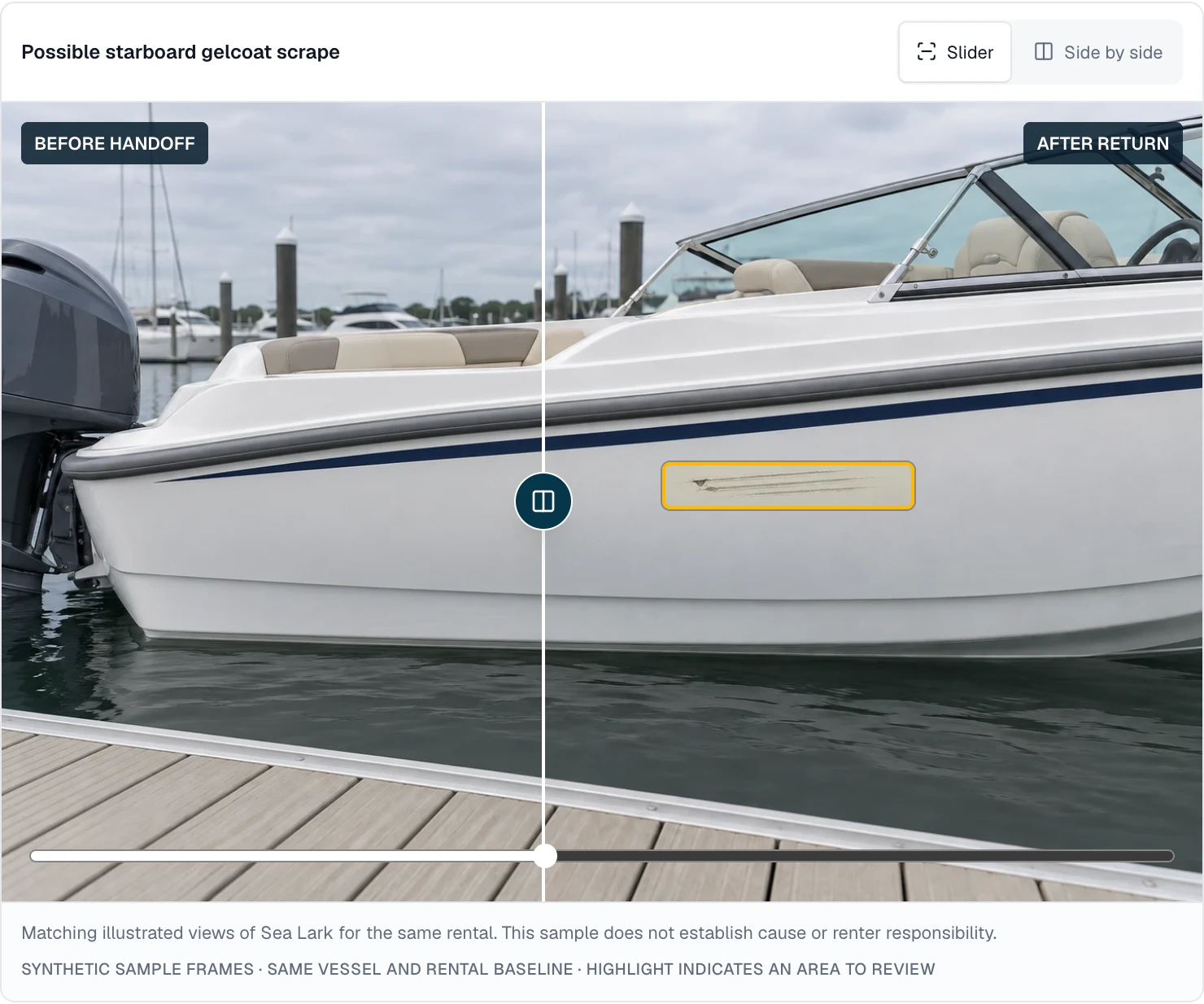
Actual PATHR Fleet dashboard screenshot: possible new hull scrape, with the before/after slider and highlighted area for human review. Evidence is synthetic.
01

Possible new hull scrape

Compare the same area before handoff and after return. A staff member reviews the change before confirming damage.

Open the inspection workspace
Actual dashboard · Synthetic demo evidence · Screenshots from the working inspection experience. Sample illustrations do not depict a customer’s boat.

Office to captain

One plan.
From office to captain.

Plan a route in the office, send it for the captain’s review and follow the trip against that plan. Keep acceptance, progress and ETA in the same workflow.

Explore route dispatch
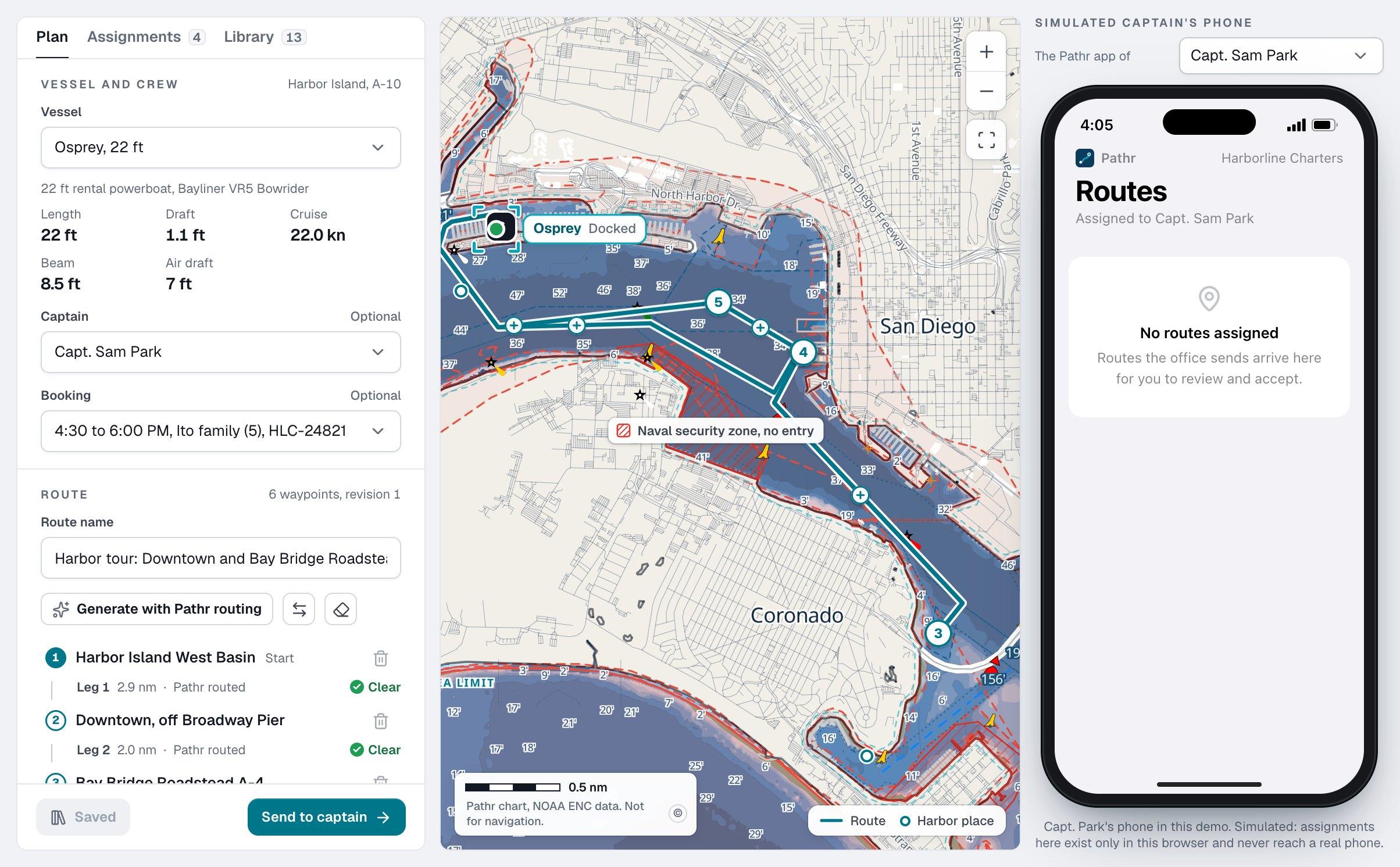
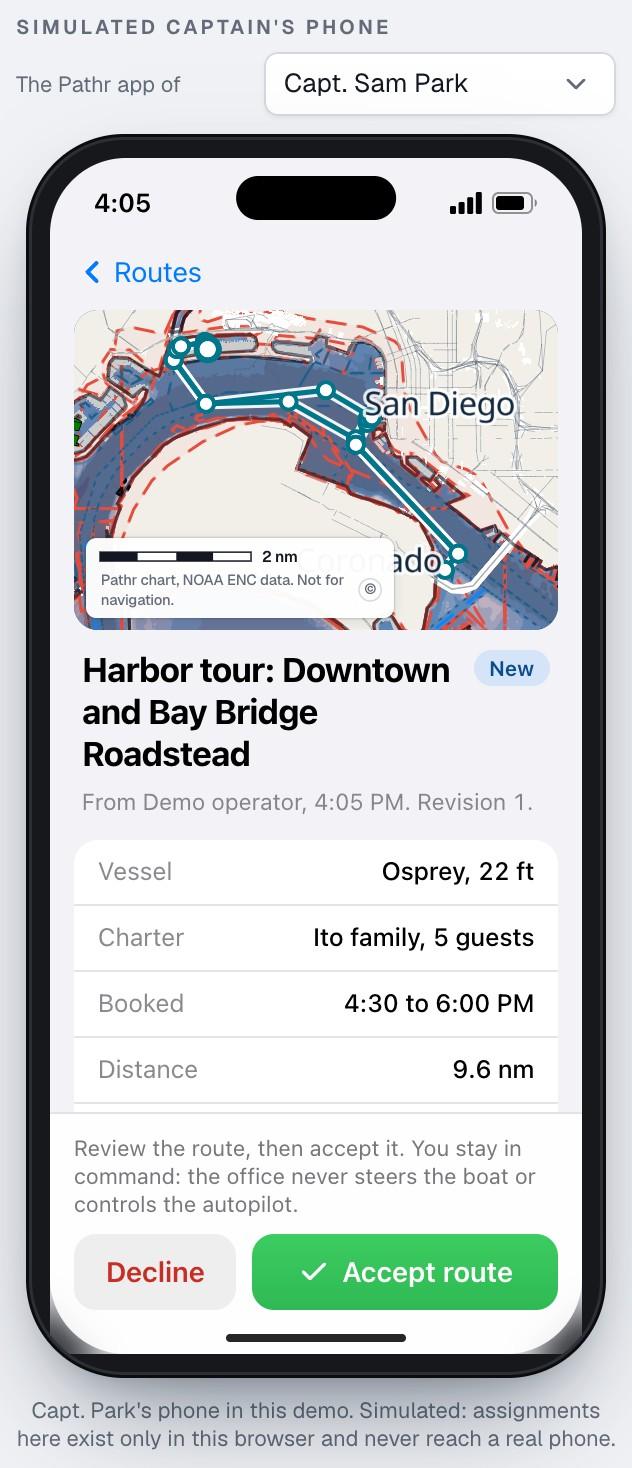
The planner in the demo: Osprey, a 22 ft rental, with Capt. Sam Park and the Ito family's 4:30 to 6:00 PM booking. The harbor tour runs from Harbor Island West Basin past downtown San Diego toward the Bay Bridge roadstead on the Pathr chart, each leg marked clear. Capt. Park's simulated phone has no routes assigned yet.

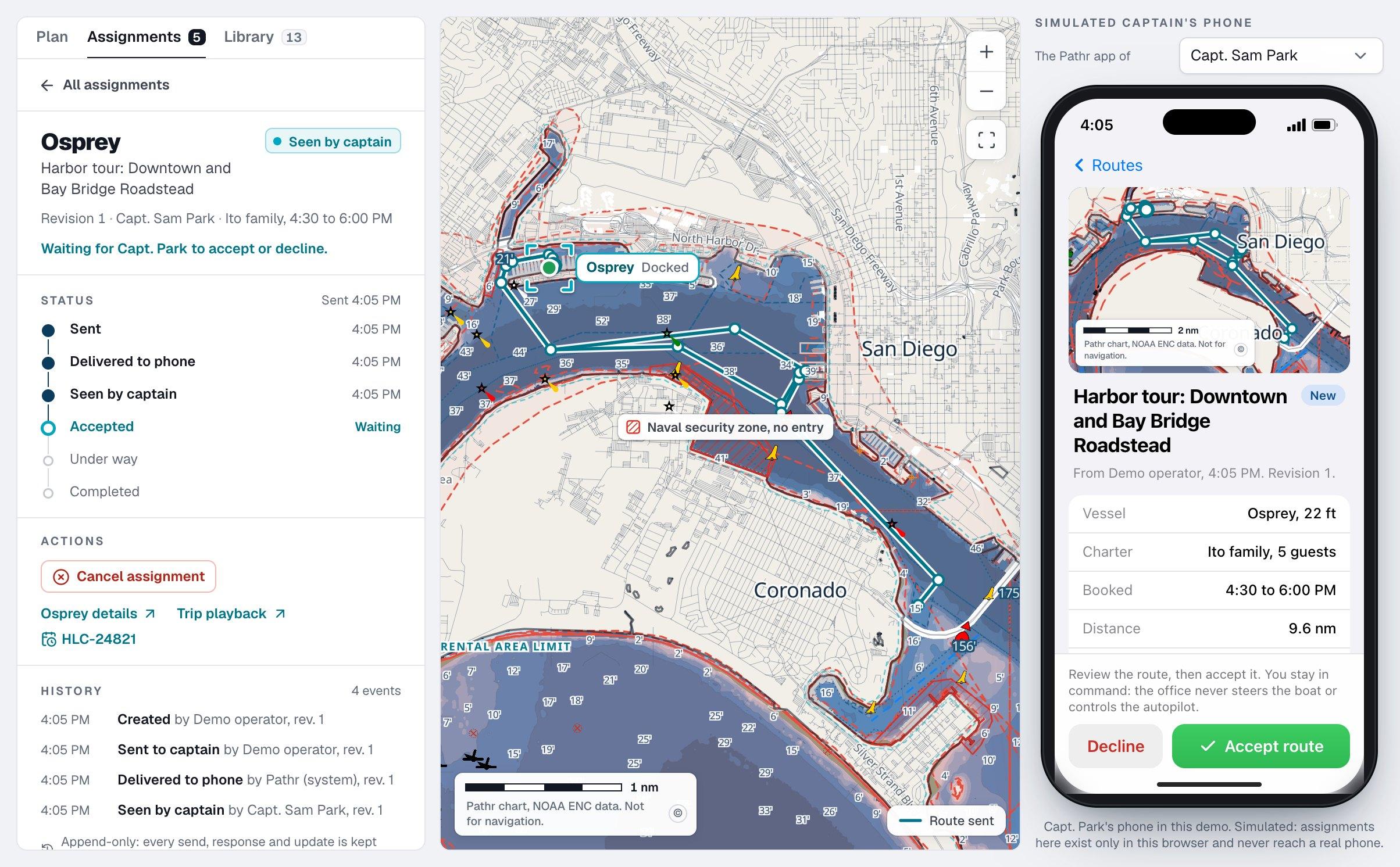
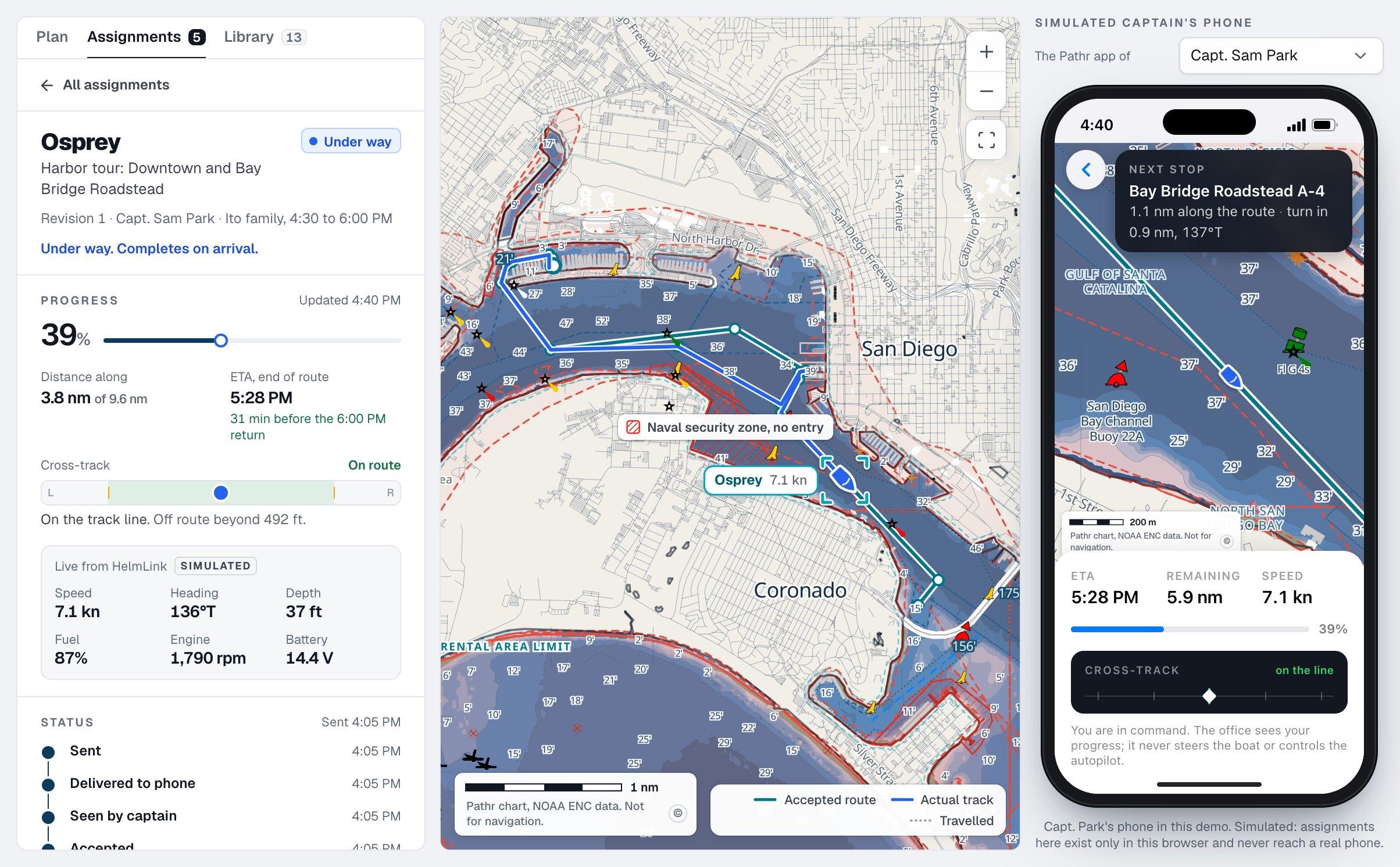
Real screens from the interactive demo at 4:05 and 4:40 PM. Capt. Sam Park's phone is simulated: nothing in the demo reaches a real phone.

  1. 01

    Plan it on the Pathr chart

    Pick the boat, the captain and the booking, then draw the route or let Pathr routing draw it. Every leg is checked for that boat.

  2. 02

    The captain accepts it

    The route arrives in the captain's Pathr app with the charter, the distance and the safety notes. Nothing starts until the captain accepts it.

  3. 03

    Track it from the office

    Progress, ETA and the planned route against the actual track, live while the boat is under way.

The actual demo’s simulated captain phone: Osprey’s harbor tour with separate Decline and Accept route controls.
Actual dashboard · Simulated captain’s phone

The captain reviews and accepts the route.

Starting navigation is a separate action.

Review the captain app workflow as part of your fleet setup.

Start with what’s aboard

Bring the boats
you actually run.

Today, HelmLink reads NMEA 2000 equipment and brings the available boat data into PATHR Fleet. Each reading shows its age, so your team can see how current the picture is.

Run more than one type of boat? Bring your equipment list. We’ll confirm the connections available for your setup and review additional systems and data sources with you.

Review your fleet’s setupNMEA 2000 monitoring and compatibility
From the boat to your team
  1. 01 / On each boat

    HelmLink

    Reads NMEA 2000 equipment today
    PositionEngine hoursFuelBattery
  2. 02 / When connected

    Upload the readings

    Wi-Fi field units today.
    Cellular-equipped units are planned.
  3. 03 / With your team

    PATHR Fleet

    Trips, alerts, maintenance and the chart

Available readings depend on each boat’s equipment and connectivity. We agree the supported setup and what needs further development with you.

Your fleet, in focus

Bring your busiest day.
See a clearer way to run it.

Show us where the handovers break down, the records get lost or the next departure gets held up. We’ll walk through the relevant workflows and review what it would take to bring PATHR to your operation.

A closer look at your operation

See how PATHR fits your fleet.

Bring the situations your team handles every day. We’ll walk through the dashboard around those workflows and map the equipment, connectivity and setup for your fleet.

We confirm scope, availability and pricing with you.

Book a call

How it starts

  1. We reply by email to arrange your fleet walkthrough.
  2. We review the workflows, onboard equipment and connectivity your operation needs.
  3. We agree the setup, timing and pricing for bringing PATHR to your fleet.

Bring PATHR to your fleet with a setup planned around your boats, equipment and team.

What we review together

  • Your operating day

    Focus the walkthrough on your boats, handovers and the work that slows your team down.

  • Equipment compatibility

    NMEA 2000 is supported today. Bring your equipment list so we can confirm the connections and readings available for each boat. Additional systems are reviewed individually.

  • Connectivity review

    Field units upload over Wi-Fi today. Cellular-equipped units are planned; we agree coverage and reporting expectations for your operation.

  • Dashboard workflows

    Explore the chart, alerts, manually entered bookings, maintenance and dispatch. The public dashboard uses simulated data; we confirm the workflows available for your deployment.

  • A practical rollout plan

    Agree the boats, supported workflows, equipment and onboarding for your rollout. We plan timing and pricing with you so your team knows how to get started.

A clear starting point

The practical
questions, answered.

Review the equipment, connectivity and workflows for your operation with our team before your fleet goes live.

Will it work with our boats and equipment?

HelmLink currently reads NMEA 2000. We are expanding support across onboard systems and data sources. Bring your equipment list to the walkthrough so we can review the connections and readings available for each boat, including any additional systems your operation needs.

Will we have positions while boats are away from the dock?

Field units upload over Wi-Fi today. Cellular-equipped units are planned for tracking under way. We agree the hardware, coverage and reporting expectations for your operation during setup. The dashboard shows the age of readings so a reporting gap stays visible.

Does it connect to our booking software?

Bookings are entered in PATHR Fleet manually today. Connections to booking software are planned. We review how your team handles reservations and handovers during setup, including the connections your operation needs.

Can we try the AI-assisted inspections?

Yes. Explore vessel-linked inspections, renter walkthroughs, saved before/after comparisons, human review and maintenance follow-up in the interactive demo. The public AI Vision preview uses pre-analyzed sample evidence. Personal media uploads and live AI analysis are planned; discuss the inspection workflow and availability for your fleet with our team.

How do we get PATHR set up for our fleet?

Bring the situations your team handles every day. We’ll walk through the dashboard around those workflows and map the equipment, connectivity and setup for your fleet. We confirm scope, availability and pricing with you. Together we agree the boats, supported workflows, equipment and onboarding for your rollout.

Explore at your own pace

Get comfortable before your first shift.

Try the actual Fleet dashboard with guided practice. Start with one situation, use the real controls and see what happens next.

Simulated fleet data · No timer · No account needed

  1. Find a boat and read its statusFind a vessel on the chart and understand what it is telling you.
  2. Investigate an overdue rentalCheck the trip, assess the situation and record the follow-up.
  3. Check a boat out at the dockReview the booking and complete a dockside handover.